What would you like to build?
Practical guides for creating, testing and publishing your IAMX characters. Start with the task you want to complete.
Choose a guide
Build the avatar
Use a preset, change its look, choose a background, and set idle, listening and talking animations.
Put it on your website
Choose a widget, publish your scene and copy the installation code.
Help visitors find their way
Let the character understand the current page, offer spoken help and guide visitors to another page.
Teach with Academy
Prepare lessons, answer student questions, share resources and follow progress.
Give it knowledge and actions
Connect your documents, memory and tools so replies use your information.
Connect an Unreal character
Install the plugin for your engine, configure the component and connect facial animation.
The Studio at a glance
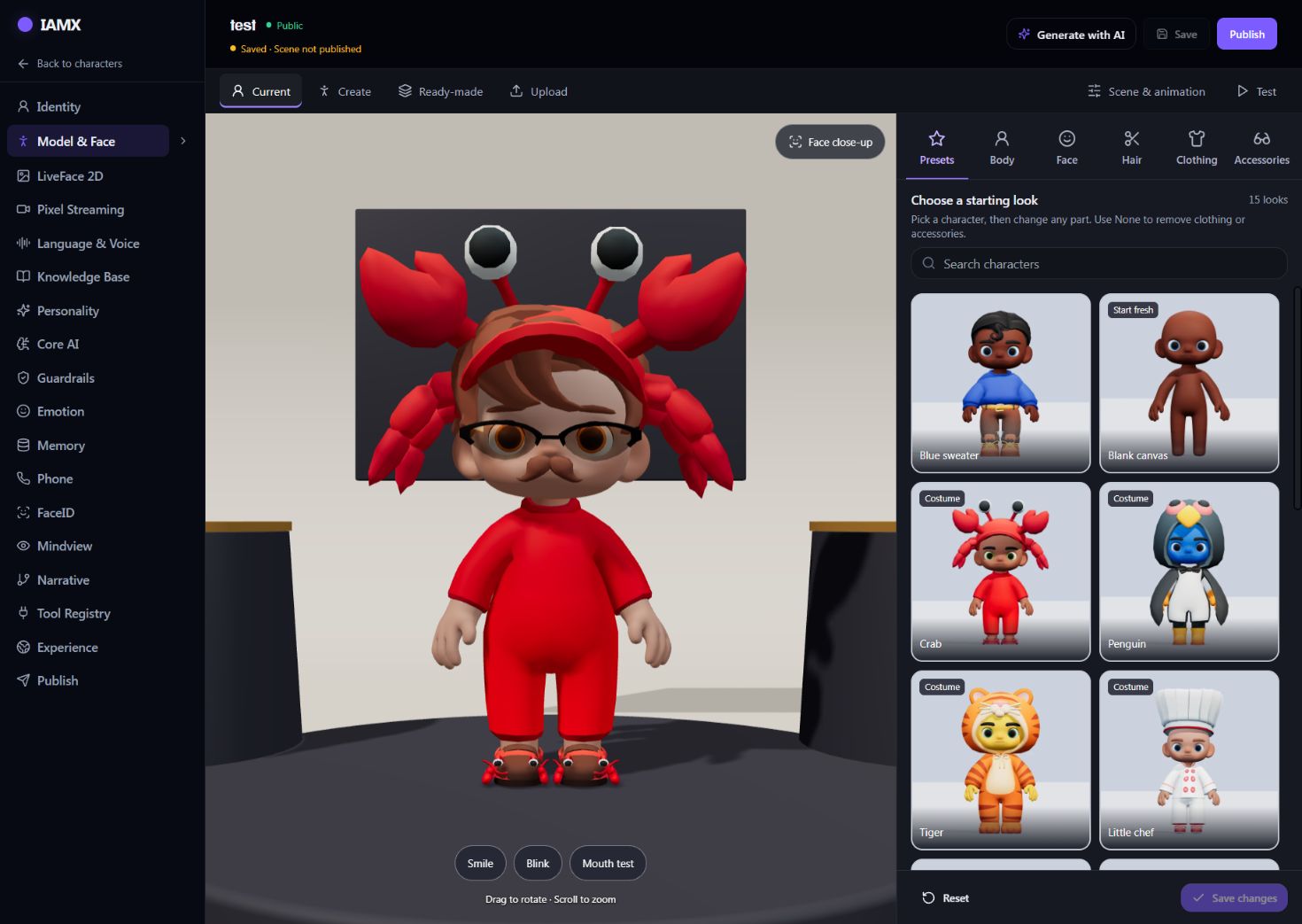
- Define the character. Set Identity, Language & Voice and Core AI.
- Build its appearance. Open Model & Face, then choose Current, Create, Ready-made or Upload.
- Give it something to know and do. Add Knowledge Base material, actions or a website Experience.
- Test and publish. Check text and microphone input, then publish the character and scene. Website Experience has its own publish control.
Find the right control
| I want to… | Open | Guide |
|---|---|---|
| Change clothes, hair or a preset | Model & Face | Avatar Studio |
| Change the scene, camera or animation | Model & Face → Scene & animation | Scenes and animation |
| Choose a voice or fix microphone input | Language & Voice / Settings | Voice and microphone |
| Answer from a PDF | Knowledge Base | Knowledge Bank |
| Recognise the website page | Experience → Site guide | Website guide |
| Copy a widget or embed | Publish | Website embed |
When something is wrong
Start with troubleshooting for missing backgrounds, silent audio, microphone permission, unpublished changes and Academy lessons. Search the docs with the menu search or Ctrl / ⌘ + K.
Updated . Screenshots show example configurations; your available options depend on the character and account.