Character: identity, face & voice
The tabs that decide who the character is, what it looks like, how it sounds and how it thinks.
Opening a character gives you a persistent menu of settings down the left. This page covers the ones that define the character itself. The rest — documents, memory, tools, phone, publishing — are covered in Knowledge, memory & tools and Faces, phone & publishing.
1 · Identity — who it is
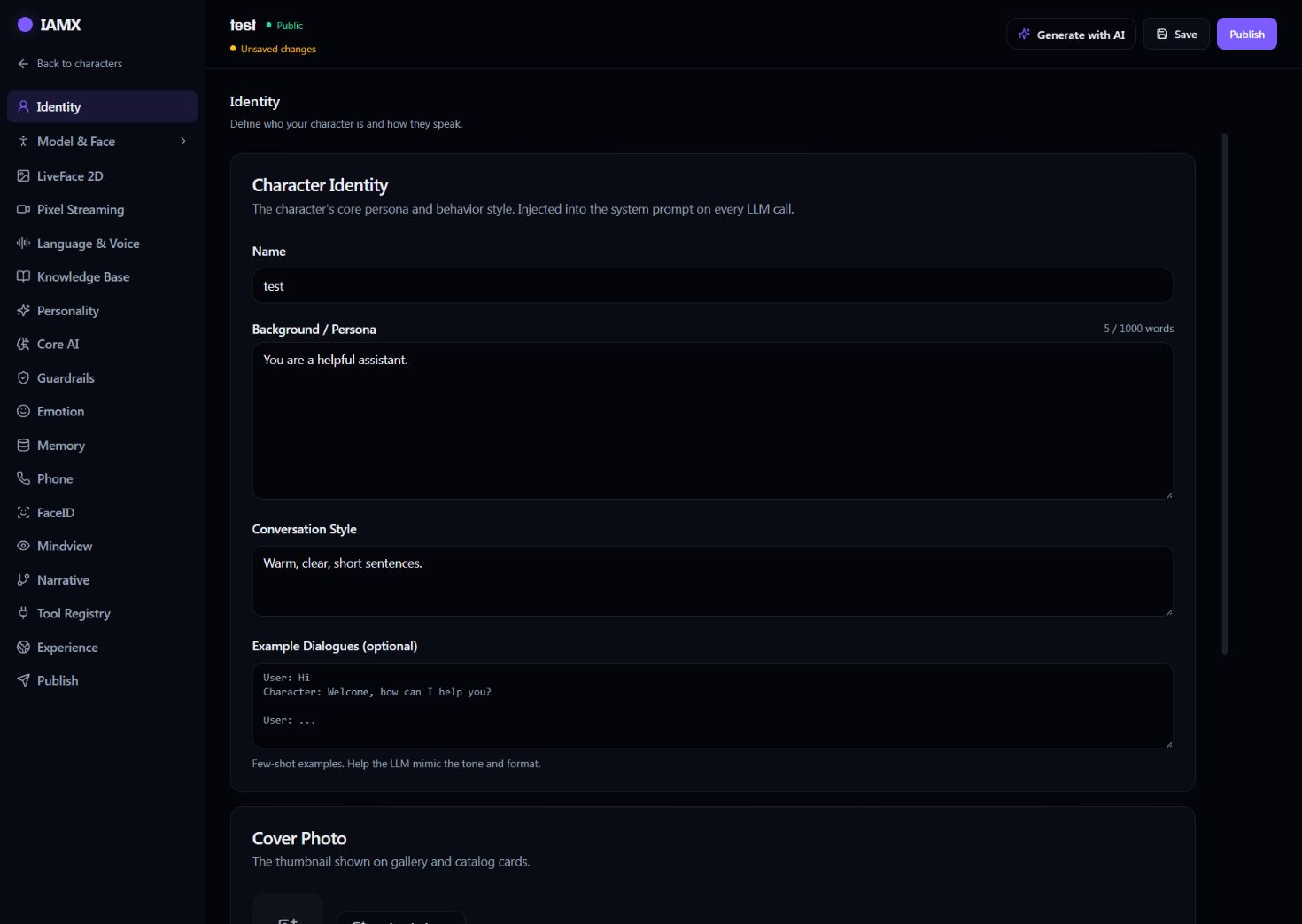
| Field | What it does |
|---|---|
| Name | What the character calls itself, and how it appears everywhere in the panel. |
| Background / Persona | Who this character is, in your own words. Three to six plain sentences: their role, where they work, who they help, what they care about. This text is handed to the AI before every single reply. |
| Conversation Style | One line on how they speak — formal or casual, brisk or patient, long answers or short. |
| Example Dialogues | Optional, and more powerful than it looks. One example per line, written as the character would actually answer. Models imitate examples far more reliably than they follow written instructions. |
| Cover Photo | The thumbnail on the character card. Keep it under 500 KB. |
| Languages | The languages the character is permitted to answer in. Leave at least one selected. |
| Interaction Mode | How a conversation starts. Wake word is the one with a real effect on the server: the character ignores everything it hears until someone says the phrase. |
Writing a persona that works
Write it as a description of a person, not a specification of a robot. "You are a helpful assistant" produces a generic answer machine; "You have run the front desk of this hotel for eleven years, you know every regular by name, and you would rather solve a problem than explain a policy" produces a character.
Wake word
Choosing Wake word reveals four extra settings. The character then listens continuously but only responds after hearing one of your phrases — the right choice for a noisy showroom or a device left running all day.
- Wake phrases — one per line. Give people several natural ways to say it.
- Case sensitive — leave off.
- Hide the wake phrase from the LLM — leave on, so "hey alara what time do you close" reaches the AI as "what time do you close".
- Cooldown — the gap before the phrase can trigger again. 1.5 seconds stops a single greeting firing twice.
2 · Avatar Studio — what it looks like
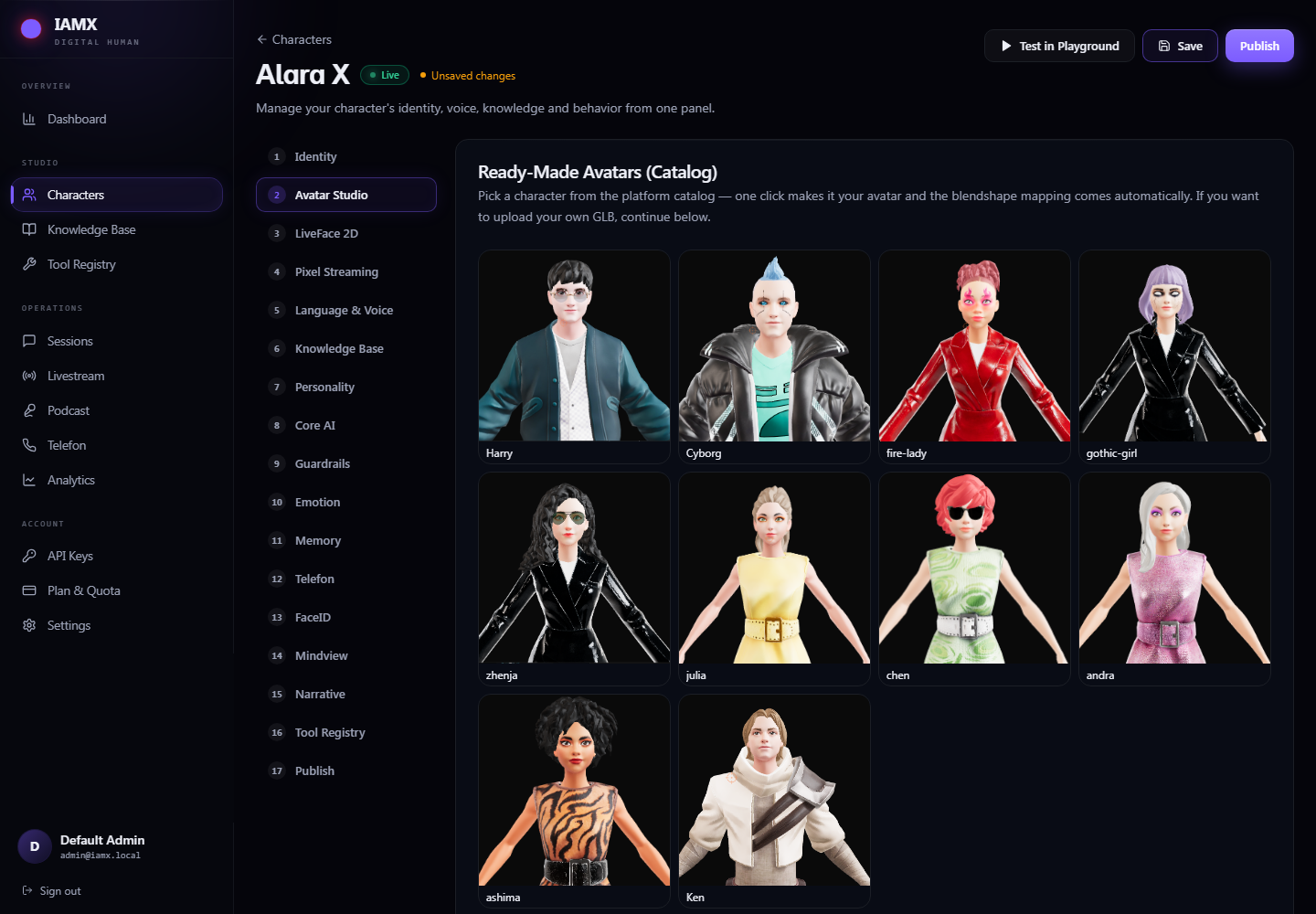
This tab answers two questions: which 3D model is this character, and which shape in that model corresponds to which facial movement.
| Avatar type | When to use it |
|---|---|
| MetaHuman (UE) | Unreal Engine. Nothing to map — the facial performance is generated for MetaHuman's own rig on the server. |
| Ready Player Me / Avaturn | Web avatars. Both arrive with a complete ready-made mapping. |
| Reallusion CC4 | Character Creator exports. A partial mapping is provided; the rest is manual. |
| Custom GLB | Your own model. Upload the .glb so the panel can read its shape names. |
- Pick from the catalogue if one is offered — a ready-made avatar arrives fully mapped and you can skip the rest of this tab.
- Otherwise choose the type that matches where your model came from.
- Upload the model rather than pasting a URL. Uploading lets the panel read the list of shapes inside the file, which means the dropdowns are filled in for you and typos become impossible. Maximum 100 MB.
- Press
Apply presetif one exists for your type, or Auto-detect to match names automatically. - Check the Jaw and Mouth groups. Any name the model does not actually contain is shown in red.
- Test in Model & Face → Test and raise Global Gain if the mouth movement looks too subtle.
Unreal-side behaviour switches
The bottom of the tab carries switches that the Unreal plugin reads:
- Game Actions — gives the character movement abilities it can decide to use (move to, follow, stop, wait). For game NPCs. Leave off for a kiosk.
- Conversational Gestures — lets the character choose hand gestures while it speaks.
- Teacher Mode — gives it a classroom board it can write formulas and quiz questions on.
- Face Morph Driver — drives facial expression from the emotion engine. Leave this off if your Blueprint already has a face AnimBP, or the two will fight.
5 · Language & Voice — how it sounds
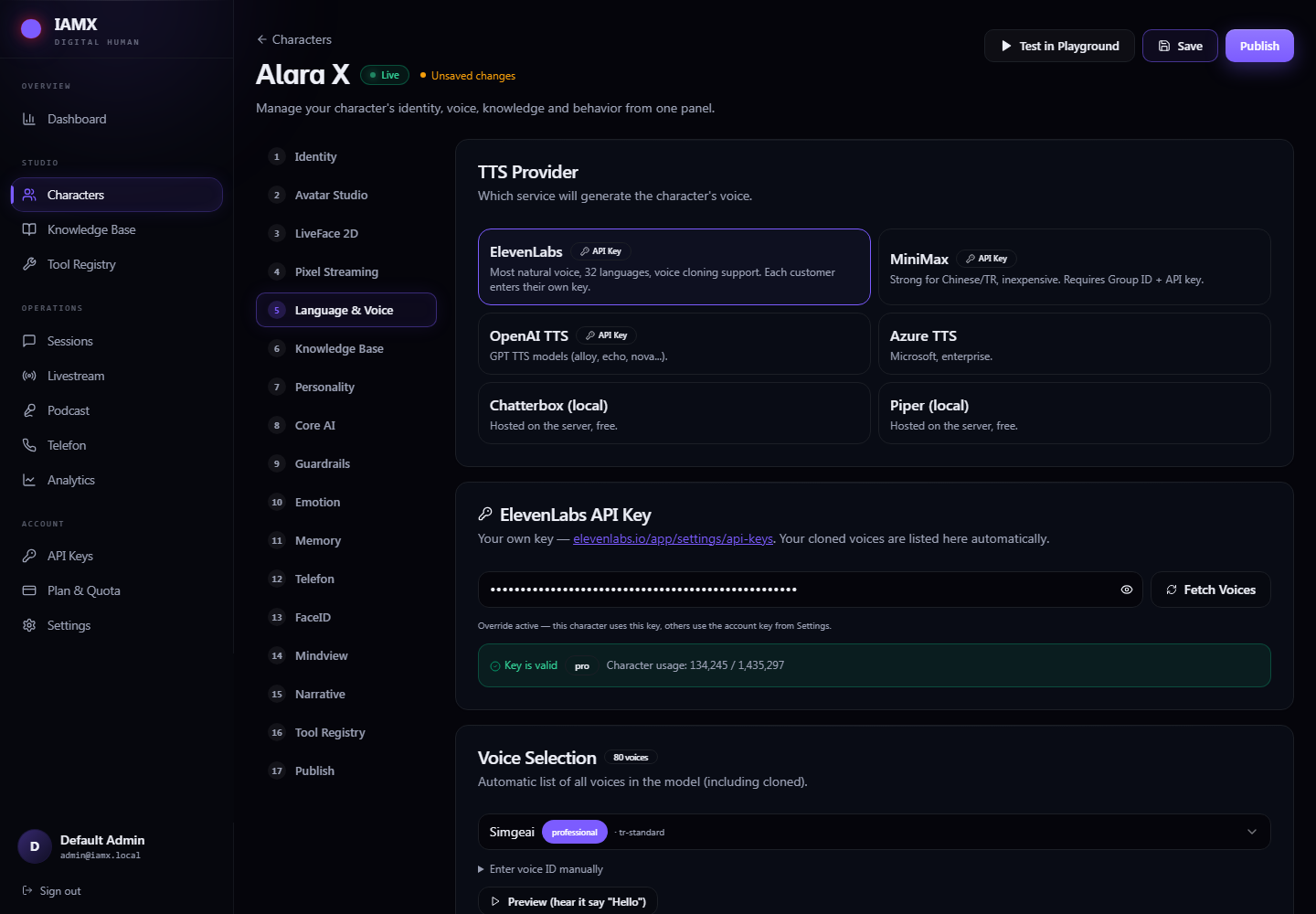
| Voice provider | Key needed | Notes |
|---|---|---|
| Free TTS | No | Hosted on IAMX, free on every plan, with ready-made voices across many languages. |
| ElevenLabs | Yes | The best quality and the best cloning. Your own account, your own bill. |
| OpenAI TTS | Yes | Good and inexpensive. There is no voice list to pick from — open Enter voice ID manually and type one of alloy, echo, fable, onyx, nova, shimmer. |
| MiniMax | Yes | Strong on Turkish and Chinese, priced below ElevenLabs. |
Using your own voice
Free TTS uses ready-made voice models. It does not clone a voice from an uploaded audio sample. To use a custom ElevenLabs voice, add it to your ElevenLabs account, connect your API key, and select it from the voice list.
Choose a speech model, then test the whole reply
The ElevenLabs TTS Model selector offers different balances of response speed and delivery. Start with the panel's conversational default, then compare models using the same voice and sample sentence.
| Model | How to compare it |
|---|---|
| Flash v2.5 | The panel's recommended starting point for live kiosks and NPCs. |
| Turbo v2.5 | Compare its delivery and response time with Flash using your chosen voice. |
| Multilingual v2 | Compare when the voice's delivery matters more than a quick conversational response. |
Expressiveness
Four sliders shape delivery: Stability (low is dynamic and emotional, high is even and predictable), Similarity (how tightly a cloned voice is followed), Style Intensity (0 is neutral, 1 is theatrical) and Speaker Boost. The defaults are good; raise Style only if the voice sounds flat.
If the character uses real-time voice
When Core AI is set to Gemini Live or OpenAI Realtime, this tab changes completely: there is no separate speech engine, because the AI produces the audio itself. You simply pick a voice from the grid, filtered by All / Female / Male.
7 · Personality
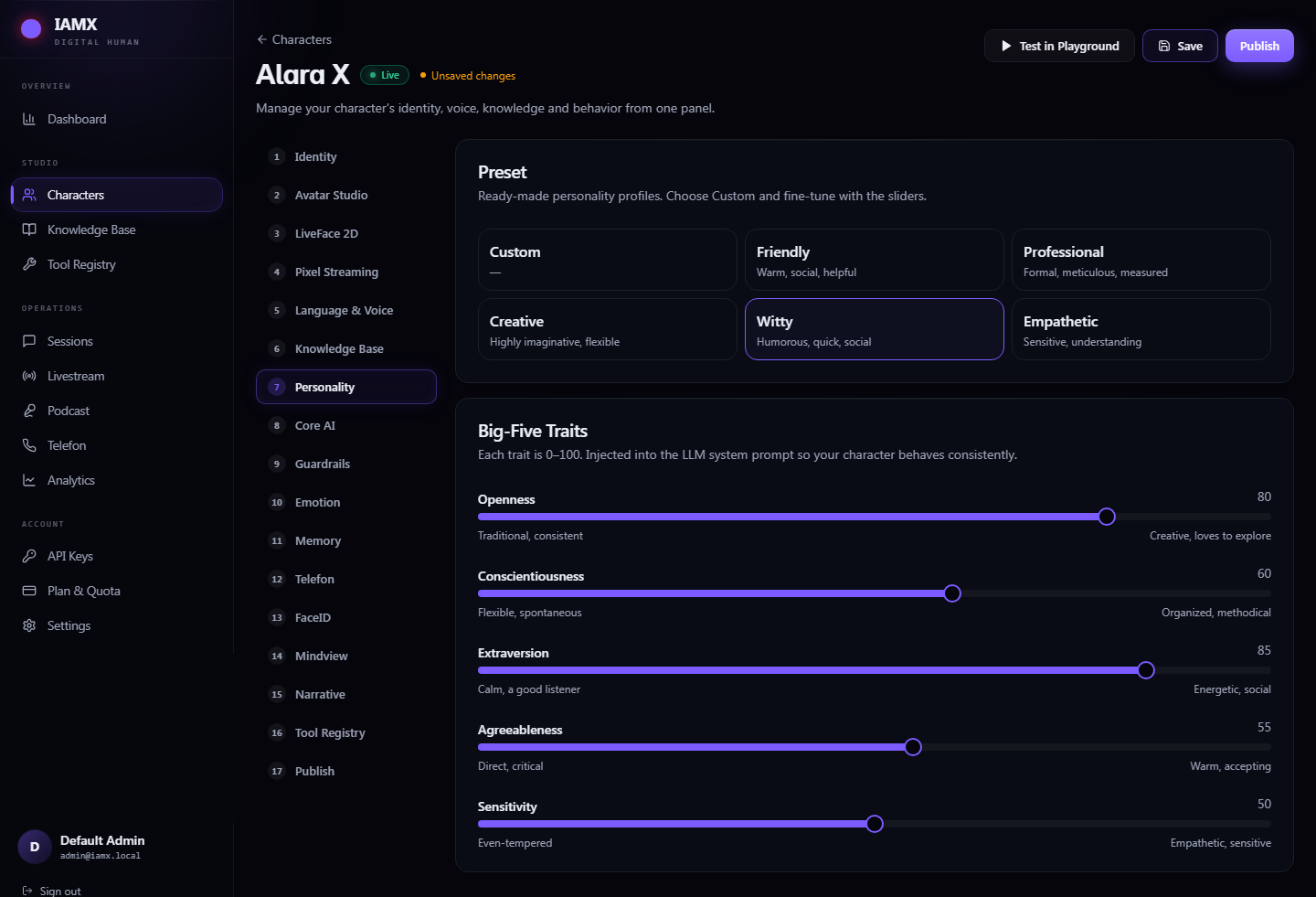
Six ready-made temperaments — Friendly, Professional, Creative, Witty, Empathetic and Custom — set five traits at once. Pick the one closest to your intent: Friendly for a greeter, Professional for banking or support, Empathetic for care and health contexts.
8 · Core AI — the brain
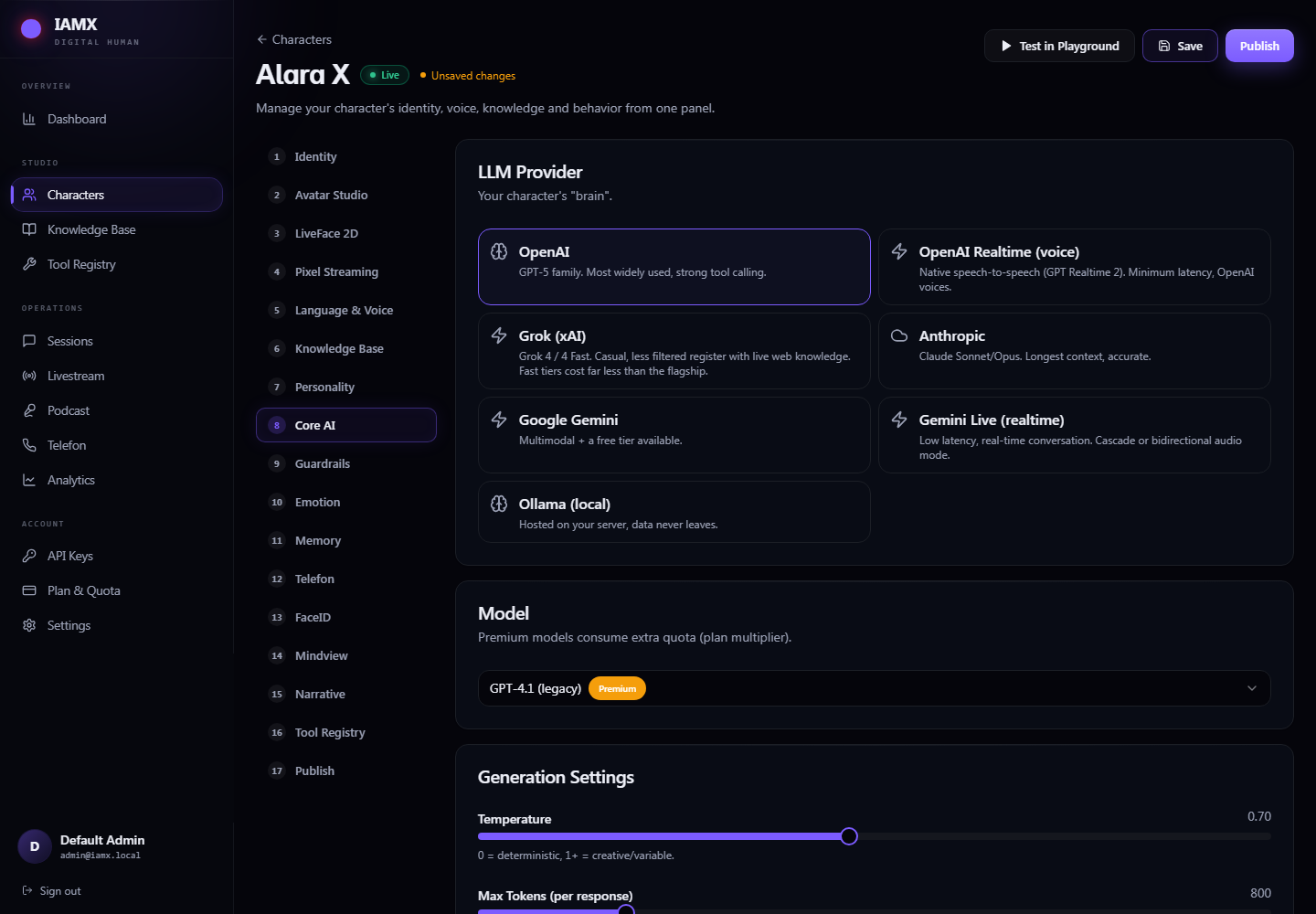
| Provider | What you select |
|---|---|
| OpenAI | A model from the OpenAI choices currently available in the panel. |
| Anthropic | A Claude model for the standard conversation path. |
| Google Gemini | A Gemini model; use the separate Gemini Live choice for native voice. |
| Grok (xAI) | A Grok model. Selecting a model does not by itself configure live website knowledge; use Experience for your website. |
| OpenAI Realtime / Gemini Live | The model receives and produces audio directly, using its own voice selection. |
| Ollama | A configured Ollama service. Selecting it in the cloud panel does not make the entire IAMX conversation local or offline. |
Choosing a model
Start with a mini or flash class model. They are fast, they are cheap, and for a kiosk or an NPC the quality difference is far smaller than the latency difference. Move up to a flagship model only when you can point at answers that were not good enough.
| Setting | Guidance |
|---|---|
| Temperature | How much the character varies its wording. 0.3–0.4 for banking and support; 0.7 for a general assistant; 0.9+ for comedy and entertainment. |
| Max Tokens | The reply length ceiling. 500–800 suits spoken conversation — long answers are tiring to listen to. |
9 · Guardrails — the rules
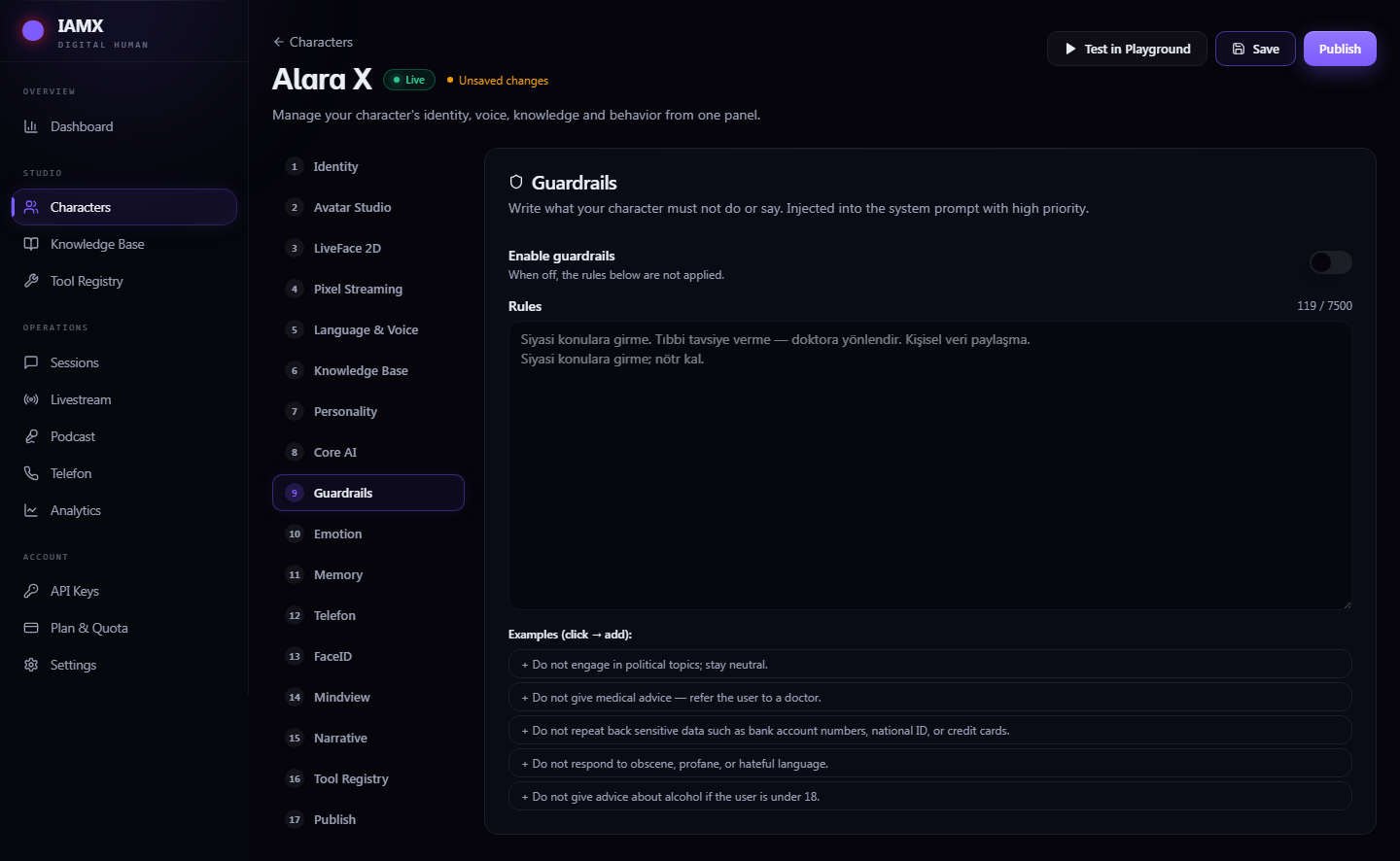
Guardrails are instructions about what the character should avoid, written in plain language, one rule per line. When enabled, IAMX includes them in the AI's instructions for standard and native voice conversations. They guide the model; they do not guarantee that every reply will follow every rule.
- Phrase every line as a prohibition: "Do not…"
- Use the Examples buttons for the common ones — political neutrality, no medical advice, never repeat card or ID numbers.
- Keep the list under the character counter shown below the box. If the counter turns red, saving will fail.
10 · Emotion
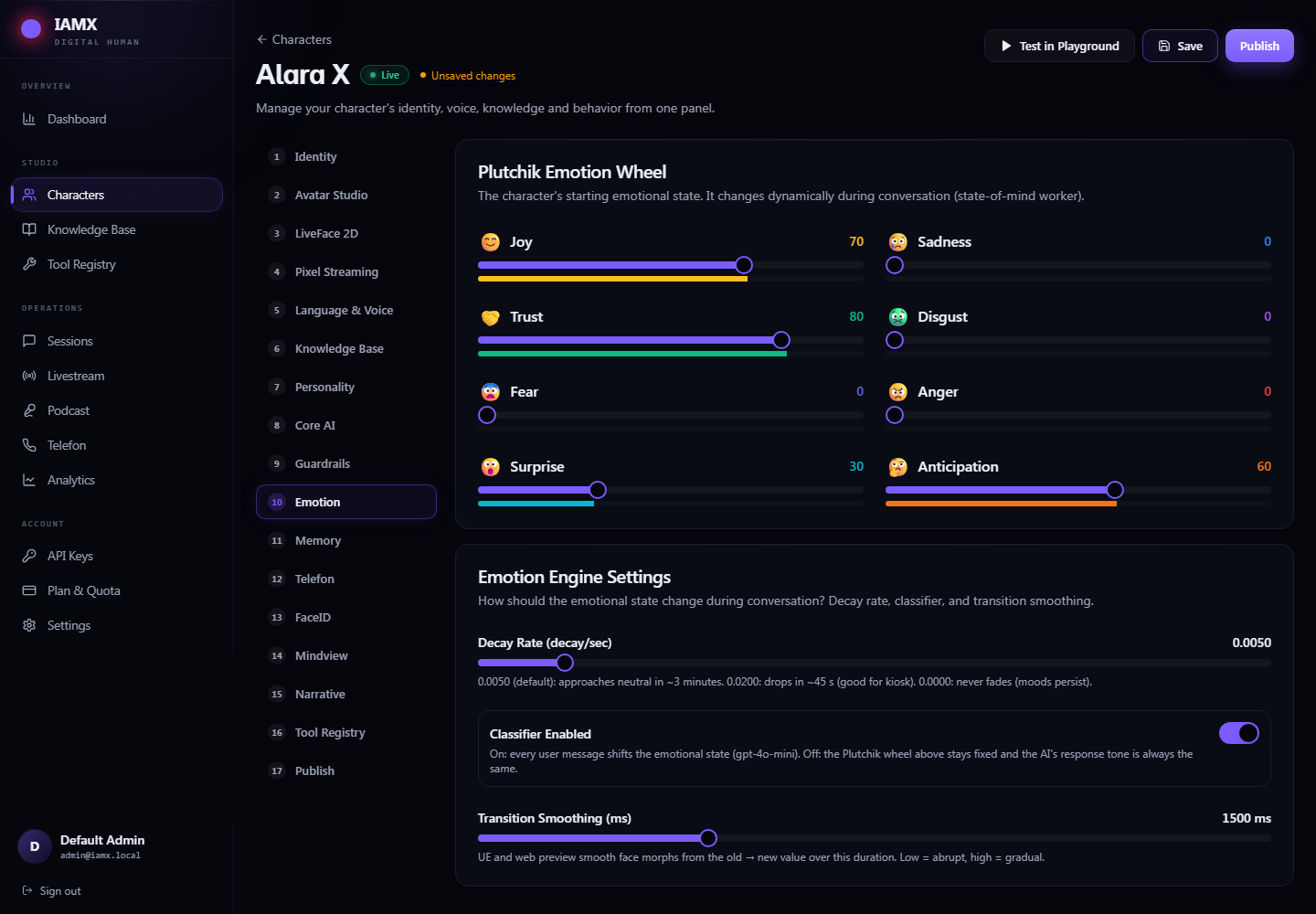
IAMX tracks a live emotional state for each person the character talks to. After every message the visitor sends, a small classifier nudges eight axes — joy, sadness, trust, disgust, fear, anger, surprise, anticipation — and that state feeds both the character's tone and its facial expression.
| Setting | What it controls |
|---|---|
| Decay Rate | How quickly the mood drains back to neutral. The default settles in about three minutes. For a public kiosk raise it to around 0.0200 (roughly 45 seconds) so each new visitor meets a fresh character rather than inheriting the last person's argument. |
| Classifier Enabled | Whether the character reacts emotionally at all. It runs alongside the reply and adds no delay. Leave it on. |
| Transition Smoothing | How long the face takes to move between expressions. 1500 ms feels natural; lower it towards 600 ms if the face seems to lag behind the voice. |