Virtual teacher and classroom board
Use a teaching avatar to explain a problem beside a readable classroom board. Rehearse the spoken lesson, written examples and questions before publishing the scene.
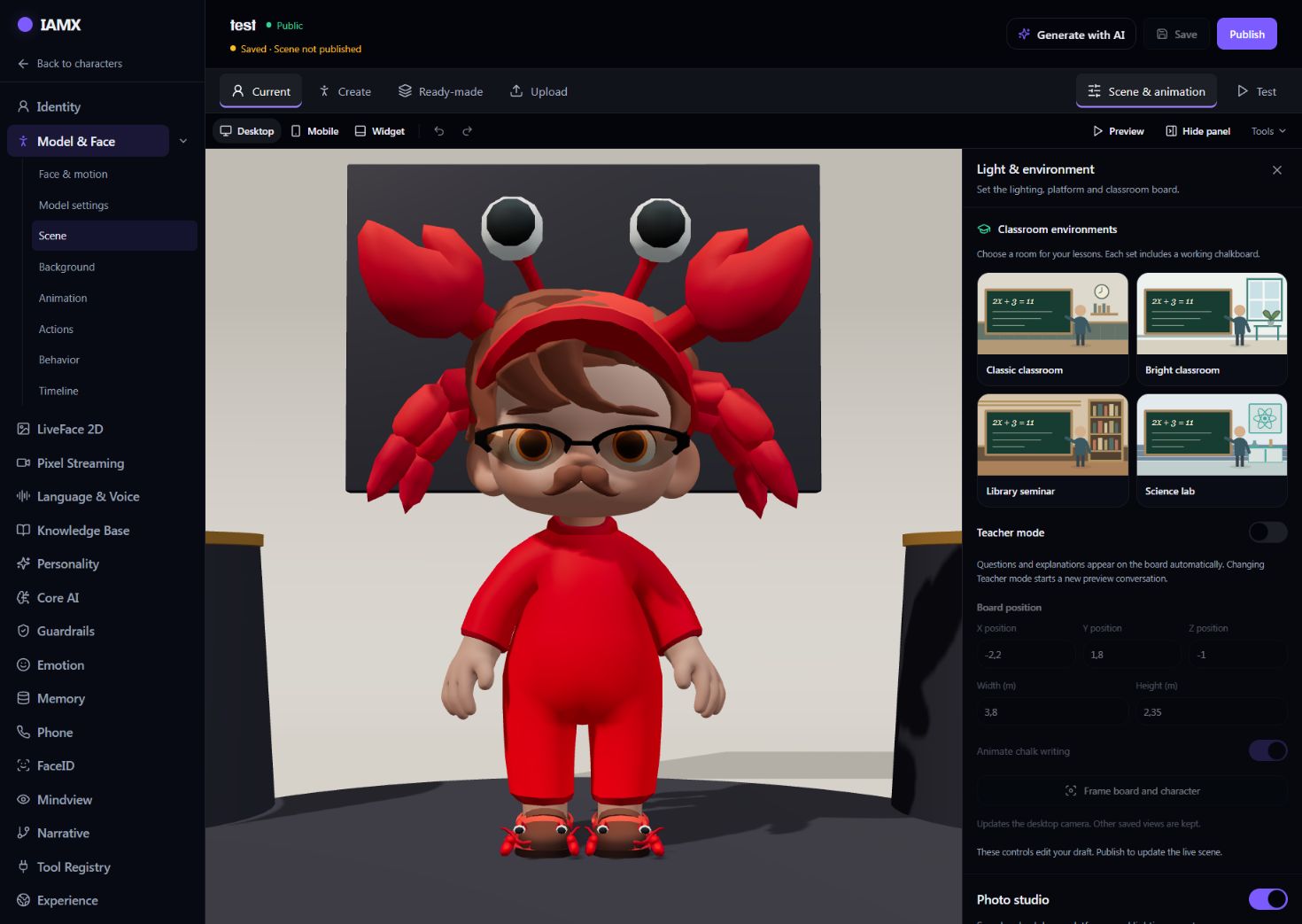
Set up a classroom board
- Open the character → Model & Face → Scene & animation. In the Scene tools, open Light & environment and find the classroom controls.
- Choose a classroom if you want a room around the board. The classroom presets offer different settings. Check that Teacher mode is on; you can also use the working board with another background.
- Click Frame board and character. This adjusts the current viewport's camera so they fit together. It keeps the other saved views, so inspect the mobile and widget views separately if you will use them.
- Adjust Board position, Width and Height if necessary. Keep formulas readable and leave room for the character. Animate chalk writing controls the writing effect.
- Save and open Test. Ask a real teaching question. Changing Teacher mode starts a new preview conversation.
- Publish the scene when it is ready. Open the published scene or your installed embed and start a fresh conversation to verify the visitor's view.
The web scene includes its own board. An Unreal or custom client must also implement the board display and handle the character's board actions; the panel cannot add a visible board to an arbitrary client.
What can appear on the board
| Content | How it is used |
|---|---|
| Formulas | Short equations, fractions, roots and exponents. Complex notation should be tested with the examples you plan to teach. |
| Notes and headings | Definitions, givens and short numbered explanation steps. |
| Questions | An open question or a question with two to six choices. The character is instructed to wait before revealing a new exercise's solution. |
| Highlights and results | An emphasized result or a highlighted answer choice after discussing the answer. |
| Lesson images | The board can display supplied image content, such as a prepared Academy lesson visual. Enabling Teacher mode does not by itself search for or generate images. |
Questions, explanations and speech
With Teacher mode enabled, teaching questions and explanations are intended to reach the board automatically; the student should not need to say “write it on the board” each time. A short greeting, acknowledgement or clarifying question can stay conversational without changing the board.
In standard conversation mode, IAMX uses the accepted board question or explanation as the source for spoken teaching content. This helps keep the written example and spoken explanation together. Native voice models use board actions alongside their own generated audio, so test that mode separately. These paths still depend on the selected model producing a valid teaching response.
The character is instructed to keep steps short, clear the board for a new problem, explain notation in spoken language, and avoid revealing a new question's answer before the student tries. Treat these as teaching instructions to test, not a guarantee of mathematical correctness or perfect timing.
Read a long explanation
Content that does not fit on one board is divided into pages. Use the arrows below the board to move between them, or click the board / Read board to open a larger reading view with the current text, formulas, questions and images.
In an Academy lesson, the board can advance through pages with the lesson narration. Selecting a page manually pauses following; Anlatımı takip et resumes it. Page changes follow audio progress approximately, not individual words. The regular website embed currently uses the page controls and reading view; it does not automatically follow the Academy narration timeline.
Prepare and test your teaching character
- Write the persona as a teacher, not an encyclopaedia. "You teach ninth-grade maths. You are patient, you ask before you explain, and you never give the answer before the student has tried" produces a different character from "You are a helpful maths assistant".
- Add the curriculum to the Knowledge Bank. Supply the syllabus, worked examples and marking guidance, then attach the relevant knowledge to the character. Test that it uses those sources correctly.
- Ask for short steps. One definition or equation at a time is easier to read and review than a full page of prose.
- Test a complete exchange. Ask for an exercise, answer it incorrectly, ask for an explanation, then change topics. Check the board as well as the speech.
- Inspect the destination view. Use Studio Test, then the published embed at desktop and phone sizes. Test calls can use conversation quota.
If the board is missing or unchanged
| Symptom | What to check |
|---|---|
| The draft has a board, but the embed does not. | Publish the scene, then start a new conversation. A saved draft does not replace the public scene. |
| The board or avatar is outside the view. | Use Frame board and character for the affected viewport, inspect the result, save and publish. |
| The character speaks but the board does not change. | Check Teacher mode, start a new test conversation and ask a concrete teaching question. A plain greeting need not update the board. If a teaching response still fails, check the conversation error before changing the scene. |
| The end of the explanation is missing. | Check the board page count or open Read board. In Academy, resume narration following if you previously changed pages manually. |
| I need assigned quizzes and student results. | Use the Academy teacher workflow. A conversational board question alone is not an assigned Academy quiz. |
Where to go next
Load the curriculum
Set the persona
Try it out
Updated 3 October 2026.