

An AI avatar for your website.
Give visitors a website assistant they can speak or type to. IAMX combines a talking AI avatar, your chosen voice and configured knowledge in an embeddable chat widget. Build a virtual product advisor, answer service questions or welcome visitors, then test the experience on your own pages.
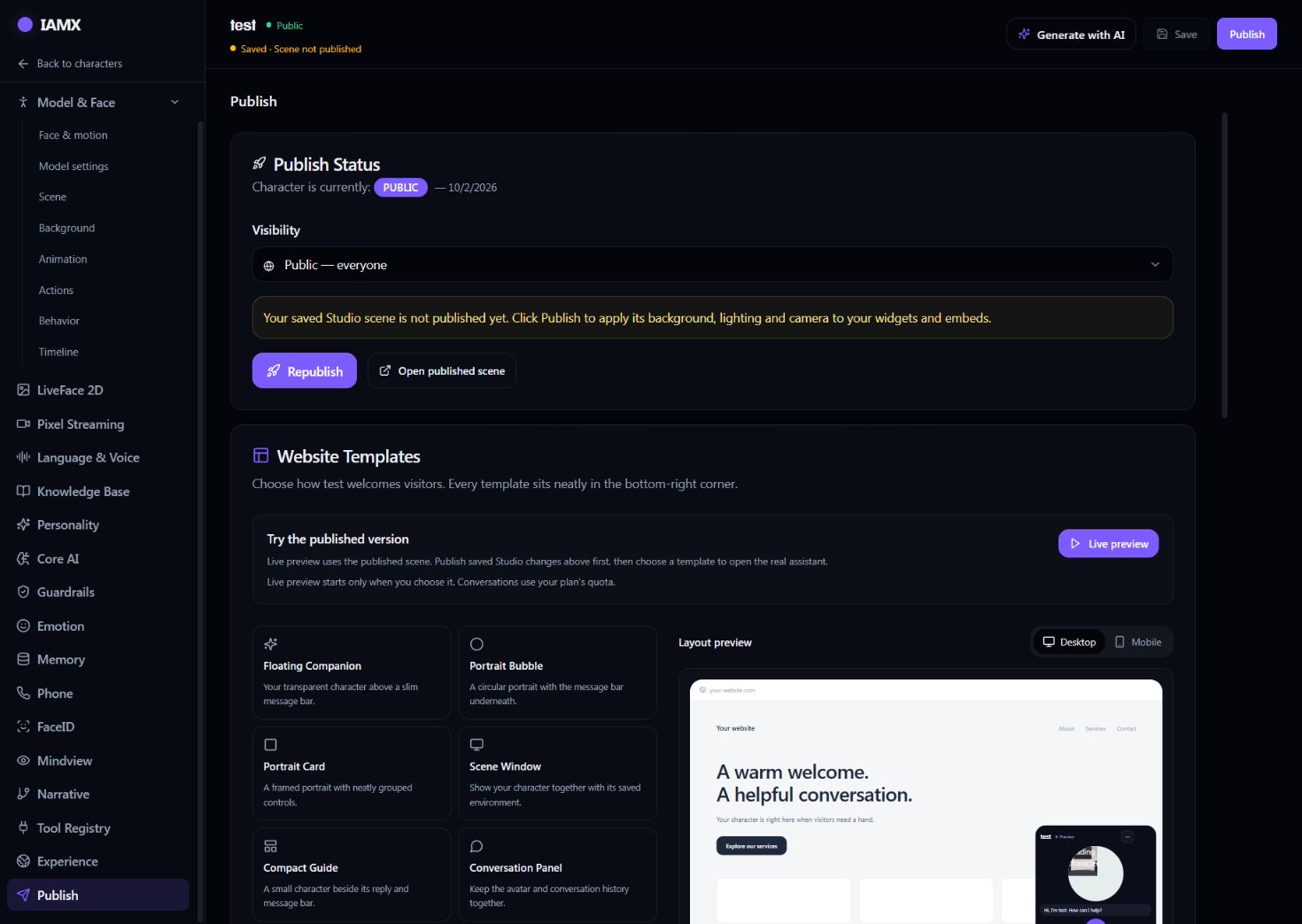
How to add an AI avatar to your website
- Configure the character
Choose a model, voice, instructions and optional knowledge base in IAMX. Test conversations in Avatar Studio.
- Preview the presentation
In Publish, choose a template and adjust its size. The live preview lets you check the launcher, character and message bar before copying the code.
- Paste one snippet
Add the generated script to your website or supported custom HTML block. Your website must allow scripts and the required iframe permissions.
Eight ways to meet your visitors
| Template | Presentation |
|---|---|
| Floating Companion | A transparent GLB character above a compact message bar. |
| Portrait Bubble | A circular portrait with conversation controls. |
| Portrait Card | A compact rectangular portrait. |
| Scene Window | A framed character with its saved environment. |
| Compact Guide | A small guide for pages with limited space. |
| Conversation Panel | A character and visible conversation history. |
| Voice Companion | A voice-focused layout with a text fallback. |
| Scene Concierge | A larger scene-based presentation for a concierge. |
True transparent backgrounds are available for browser-rendered GLB avatars. Streamed MetaHumans use a portrait or scene frame; their video background is part of the stream.
A real integration example
Replace the placeholder with the character ID from Publish. Use the generated code to retain your exact template, size and color settings.
<script src="https://iamxlive.com/iamx-widget.js"
  data-character="YOUR_CHARACTER_ID"
  data-template="round"
  data-size="balanced"
  data-open="minimized"
defer></script>Website avatar FAQs
Will it work on mobile?
The widget adapts to the available space. Test your actual page on iOS and Android, including the keyboard, microphone permission and other fixed overlays.
Does sound start automatically?
Browsers may require a tap before audible playback or microphone access. Design the launcher and opening message so visitors can start the experience clearly.
Can it answer from my documents?
On supported plans, connect a document-based knowledge assistant to the character. Review answers against the source material and define when it should refer visitors to a person.
Can it play campaigns?
Actions can combine animation, narration, music and video. Configure inactivity triggers or explicit AI action codes, and test them in your saved scene.
Give the avatar a specific job on your site
Build a virtual product advisor
For an e-commerce shopping assistant, start with approved product descriptions, specifications and common questions. Enable the relevant Knowledge Bank files for the character and test whether its answers stay within those sources.
Help visitors find the right page
Use Experience → Site guide to configure website guidance separately from the widget layout. Prepare the site map and the pages the character should help explain; verify its navigation against your actual website.
Connect a sales or booking service
On a plan with tool access, connect an authorized API for stock checks or booking requests. A sales chatbot alone does not create that service: its endpoint, allowed inputs and failure messages need to be implemented and tested.
Give unanswered questions a next step
Write instructions for missing or uncertain information. Point visitors to an existing contact page or staff channel when needed, and verify this behavior with questions your documents do not answer.
Choose the rendering path before the template
A browser-rendered GLB avatar uses the visitor's device for 3D graphics. It is the path for a transparent character over your website. A MetaHuman runs in Unreal Engine and reaches the browser through Pixel Streaming, which needs a separately provisioned rendering host and an appropriate network connection.
Start with the visual style and devices your audience needs, then choose the widget frame. A scene-based avatar and a floating character can use the same conversation configuration, but they have different rendering and background requirements.
Test the published widget on a real page
- Publish the scene you saved
Saving a draft does not apply its camera, lights and background to the public widget. Use Publish, confirm the intended Public or Unlisted visibility, and open the published scene before copying the snippet.
- Check permissions and page layout
Use HTTPS, allow the IAMX script and frame in your site's policies, and test a deliberate tap to start audio. Check the microphone, text entry, close button and overlap with consent banners on desktop and mobile.
- Evaluate answers and cost together
Try representative questions, ambiguous requests and missing information in each intended language. Review the selected voice and model, response time and quota usage. Plan units are not a fixed number of conversations; your own provider account and Unreal rendering can add separate costs.
Build a character people can talk to.
Start with a model, give it a voice and knowledge, and test the complete experience before publishing.
Maintained by IAMX · Updated · Platform facts and requirements