
Create and customize a talking 3D avatar.
IAMX Avatar Studio is an AI avatar creator for characters that hold live conversations. Customize a modular 3D character, choose a ready-made avatar or upload a supported GLB. Prepare a brand mascot or virtual presenter, then test its scene, voice and actions before publishing.
A practical talking-avatar creation workflow
- Start with the right model
Select a catalog avatar or upload a GLB. Facial animation needs compatible morph targets; body animation needs tracks that match the model’s skeleton.
- Build the presentation
Arrange the camera, background, platform and lighting. Add supported props and position video screens within the scene.
- Give movement a purpose
Choose idle, listening and talking clips. Add separate actions for greetings, demonstrations, dances or other authored movements.
- Test, save and publish
Try text and voice conversations, preview each action, and save the scene. Select a website template in Publish and test its live preview.
Conversation and actions work together
| Control | What you configure |
|---|---|
| Animation states | Idle, listening and talking clips with playback settings. |
| After inactivity | A delay before an action starts, optional repetition and a repeat interval. |
| AI action | A custom code such as [[action:greeting]] that the model can emit to select the corresponding action. |
| Narration and music | A spoken audio file or text narration with optional background music and character animation. |
| Video | A video screen positioned in the 3D scene, with separately configured accompanying audio. |
Prepare narration for avatar lip sync
Uploaded narration can be prepared ahead of playback: the speech-to-face service solves the audio into facial animation data, which is reused with the saved action. This preparation is specific to action narration. Normal live conversations retain their streaming speech flow.
Animation, narration, music and video have separate settings. Use the action preview to check timing, volume and the facial controls present on your own model.
Prepare blendshapes for facial animation
A GLB can contain a skeleton and facial blendshapes, also called morph targets. Real-time lip sync requires compatible facial controls; an animation upload cannot add missing ones. Use body clips for a compatible skeleton and check the facial mapping on your model.
Start with the model workflow that fits your assets
| Starting point | What you can do | What to check |
|---|---|---|
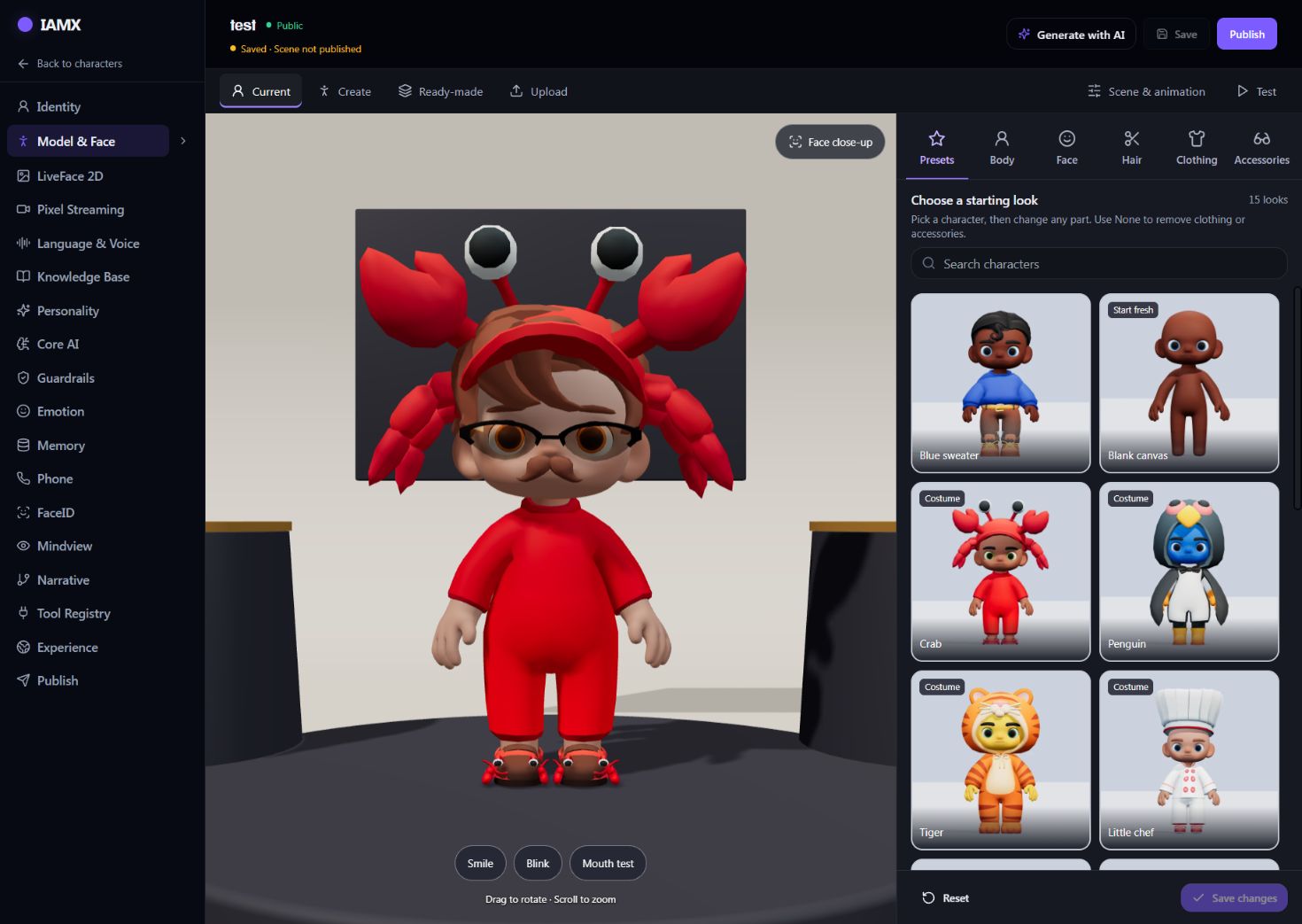
| Create | Choose a preset, then adjust body, face, hair, clothing and accessories from the modular collection. | Inspect covered items: a hat can hide hair and a complete outfit can hide separate clothing. |
| Ready-made | Select an available catalog character and configure its scene and behavior. | Preview its facial controls and compatible animations before choosing it for the experience. |
| Upload | Bring a supported GLB model prepared in your own 3D workflow. | The model keeps its authored structure. Modular hair and clothing controls do not edit arbitrary uploaded meshes. |
| Current | Return to the avatar already saved on the character. | The available controls depend on whether it is modular, uploaded or ready-made. |
Connect an action to the moment it should happen
For an interactive product demo, an action defines the movement, narrated explanation, music or video. A character behavior defines its trigger. In Scene & animation, create one action in Actions & media, then use When & what to decide when it runs.
- Preview the action by itself
Check the chosen animation on the actual skeleton, listen to narration and music together, and confirm any video is visible in the scene.
- Choose and test the trigger
Configure a visitor-arrival rule, an inactivity delay, an explicit AI action code or a card/button click. Person detection needs the actual camera and the relevant configuration. Ordinary mention of an action name is not an AI-code trigger.
- Check conversation and repetition
Conversation takes priority over starting a behavior. Verify the configured delay and repeat settings in a fresh scene session, then test the same behavior in the published presentation.
Use a timeline or presentation when you need several authored steps. Begin with a single working action so you can distinguish a media problem from a trigger problem.
Review the character as a visitor will see it
Appearance and movement
Use the face close-up and smile, blink and mouth tests. Preview idle, listening and talking states. Check for twisted limbs, hands entering the body or facial shapes that do not move.
Conversation and source material
Test text and microphone input using the selected model and voice. Ask questions from the character's enabled knowledge files and questions outside them; confirm the intended next step for an unknown answer.
Framing and sound
Inspect the face, feet, video screens and other scene content at the published size. Check the voice and background media on the speaker or headset your visitors will use.
Published result
Save the edits, publish the scene and open the published view. A transparent Floating Companion deliberately hides scenery; choose a scene or portrait frame when the setting needs to remain visible.
Avatar Studio FAQs
Can I use my own 3D character?
You can upload a supported GLB. Its skeleton, materials and facial shapes determine which controls and animations work. Preview your model before publishing; an upload does not repair a missing facial rig.
Can I change any avatar's clothes?
The modular collection supports its own clothing and accessories. Clothing built into an uploaded character must be edited in the source model and uploaded again.
Does saving update the live avatar?
Saving keeps your Studio work. Publish applies the saved scene's background, lighting, camera and character placement to the published character. Check the published view after changing the scene.
Do I need Unreal Engine for a GLB avatar?
No. The GLB path renders in the browser. A conversational MetaHuman uses the separate Unreal integration and its rendering requirements.
Build a character people can talk to.
Start with a model, give it a voice and knowledge, and test the complete experience before publishing.
Maintained by IAMX · Updated · Platform facts and requirements